
How to Translate English Video Subtitles to Your Language on Mac
Learn how to extract an embedded English subtitle track from a movie, series, or show and translate it into your preferred language with SubEnvoy on Mac.
Overview
You have found a classic Hollywood film, a new streaming series, or an international show that you really want to watch, but the only subtitle available is in English. If the English subtitle is embedded in the video file, you do not need to search for a separate subtitle file first. SubEnvoy for Mac can identify the available subtitle tracks, send the subtitle text for AI translation, and save the result as a standard .srt file for your video player.
This guide follows a familiar situation for international viewers: an MP4 or MKV downloaded for a film night has an English subtitle track, and you want to turn it into subtitles in the language you use every day. The steps also work for a Korean drama, Japanese variety show, documentary, or any other video with an embedded subtitle track.
Note about the screenshots: SubEnvoy has a localized interface. The screenshots in this guide use the English interface temporarily, so the English button names are included in the instructions for easy matching.
Core Capabilities
- Embedded Subtitles: Process video files with built-in multilingual tracks (e.g., MKV, MP4, MOV).
- External Files: Translate independent .srt, .ass, .ssa, or .vtt files.
- Transcription Support: Generate subtitles from audio before translation if no source text is available.
Step-by-Step Guide (Focused on macOS)
The Mac version serves as our primary platform, offering the most powerful performance experience.
Step 1: Import Video or Subtitles
Launch SubEnvoy and simply drag and drop your video file into the application window, or click the Open File button to select it manually.
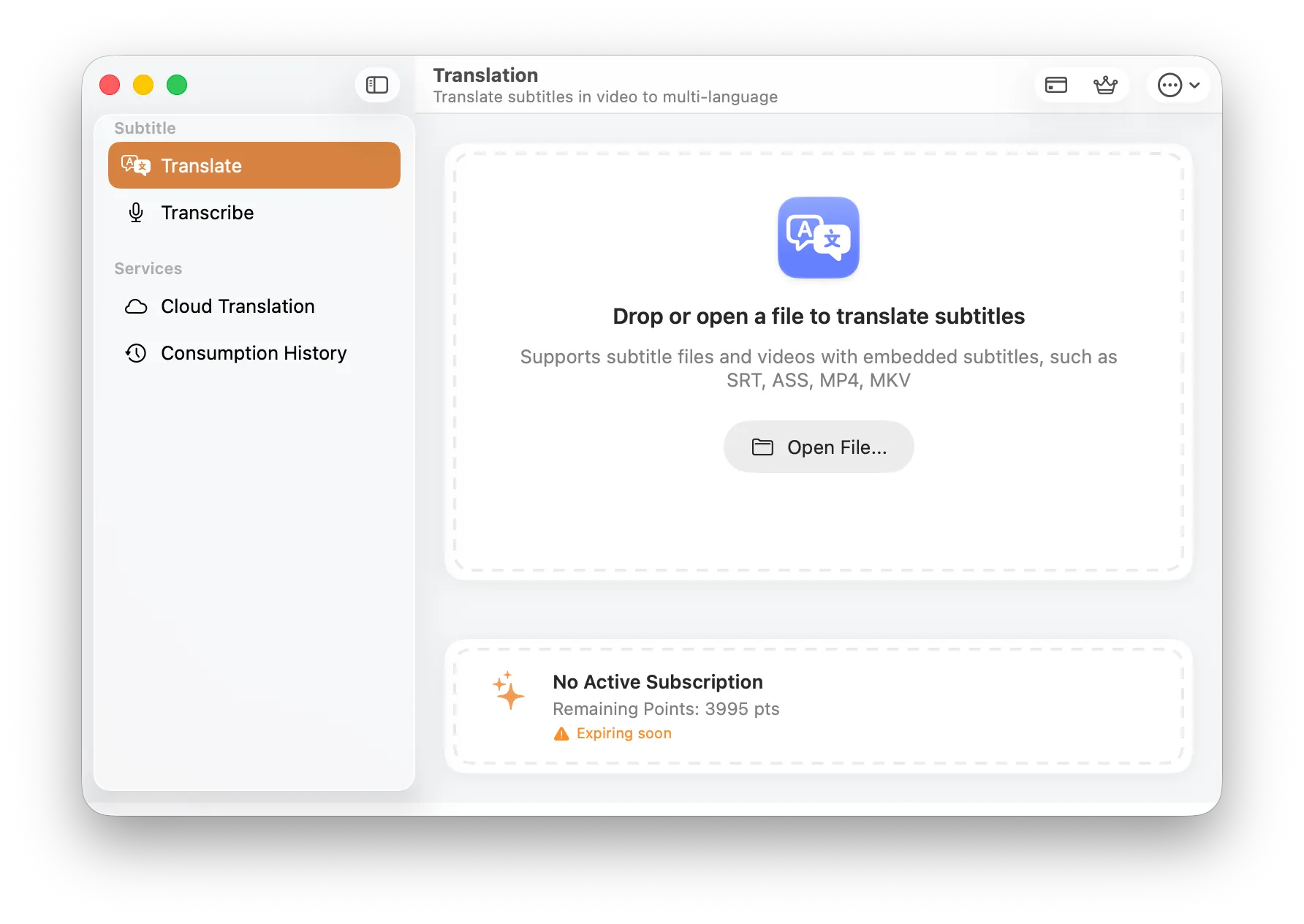
SubEnvoy Main Interface: Supports drag-and-drop for video or subtitle files
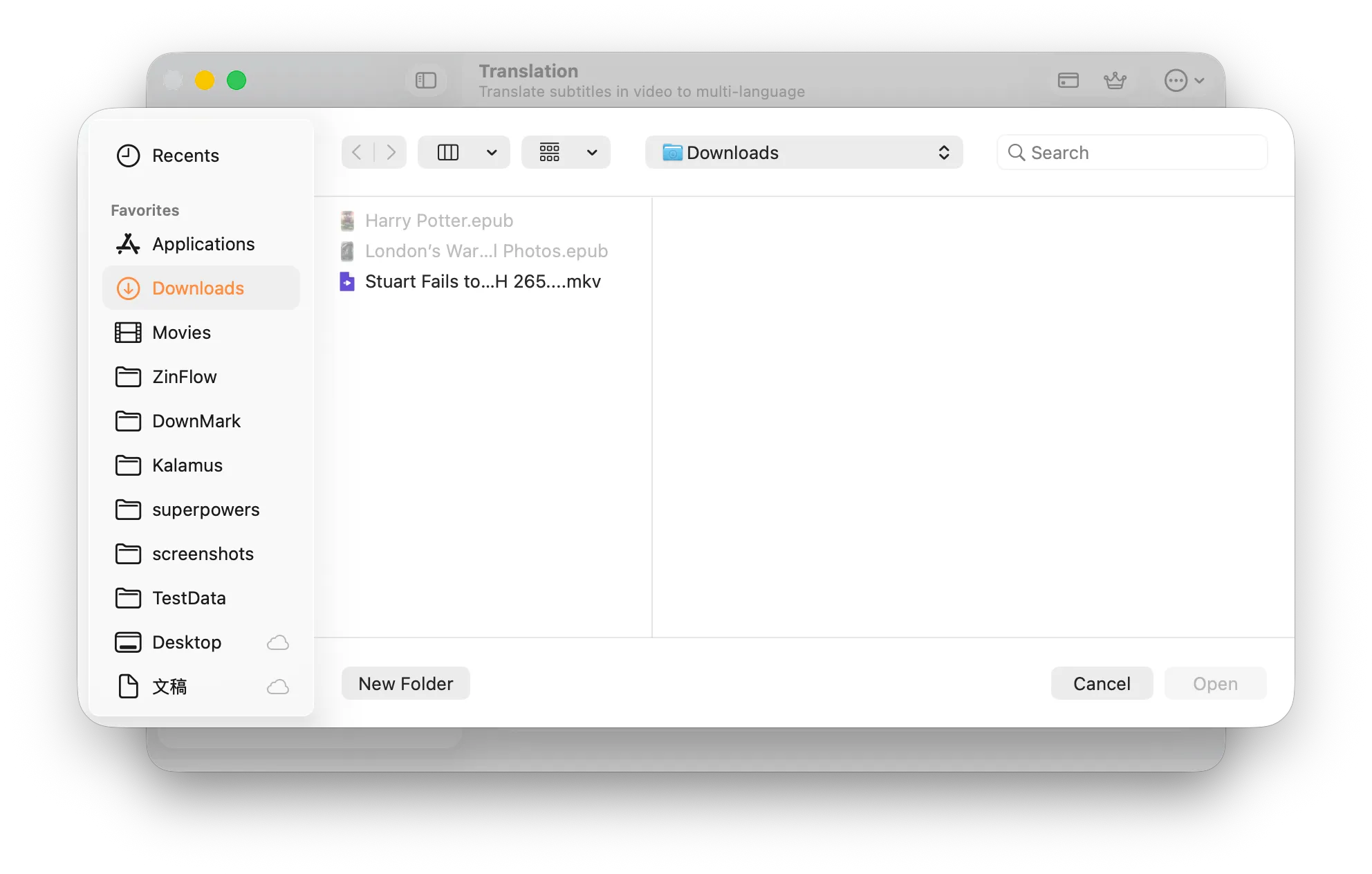
You can also use Open File... to select the video manually.
- Supported Video Formats: Compatible with almost all FFmpeg-supported media containers, including but not limited to .mp4, .mkv, .mov, .avi, .wmv, .flv, .webm, etc.
- Supported Subtitle Formats: If you already have an external subtitle file, you can drag in files in .srt, .ass, .ssa, or .vtt formats separately for translation.
Step 2: Determine Subtitle Source
SubEnvoy identifies the source based on the type of file imported:
- Embedded Subtitles (For Video Files): If you import an MKV or MP4 video, the system automatically scans for embedded subtitle tracks. If multiple tracks are detected, a dialog will appear for you to choose the target.
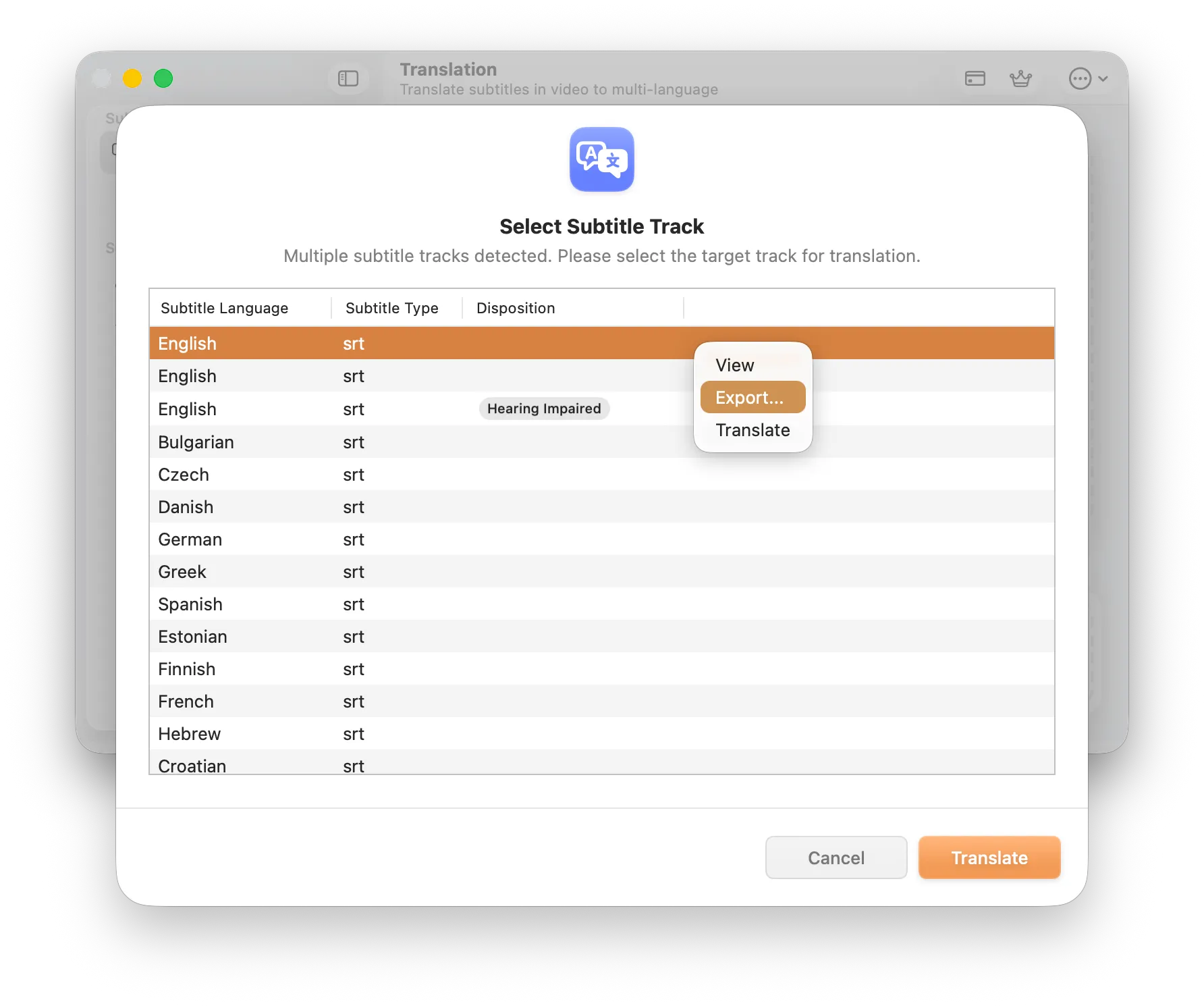
Track Selection Dialog: Choose the specific track to translate when multiple are available
- External Subtitles (For Subtitle Files): If you drag in or open an external subtitle file (like .srt) directly, SubEnvoy will skip the track selection and proceed to the next step.
- Videos Without Subtitles: If your video has no subtitles at all, click the Transcribe feature in the sidebar. This uses Apple Silicon hardware acceleration to generate the original text first.
Step 3: Configure the AI Translation Engine
After clicking the Translate button, you will enter the detailed configuration screen:
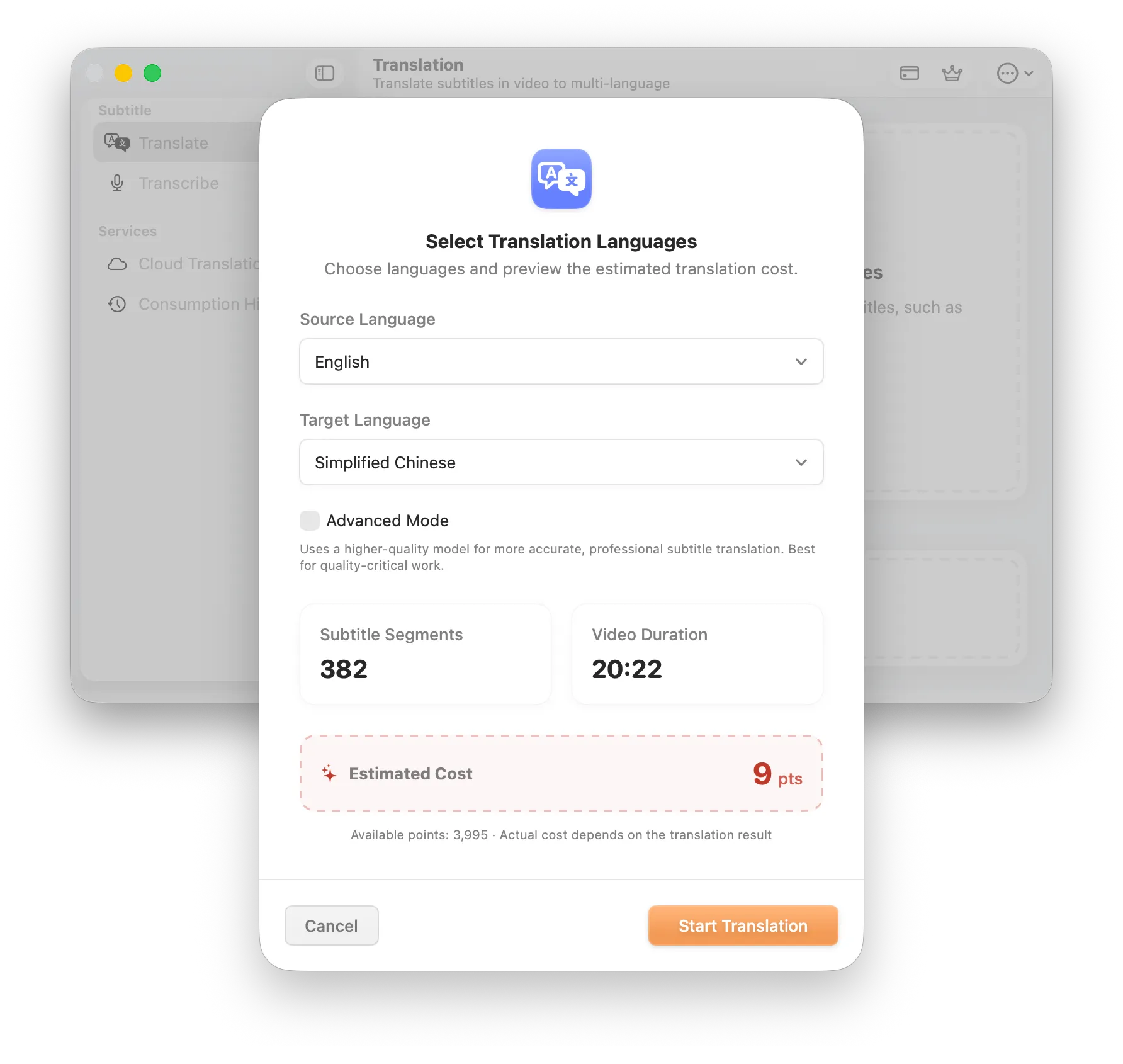
Translation Configuration: Set languages, choose mode, and preview estimated cost
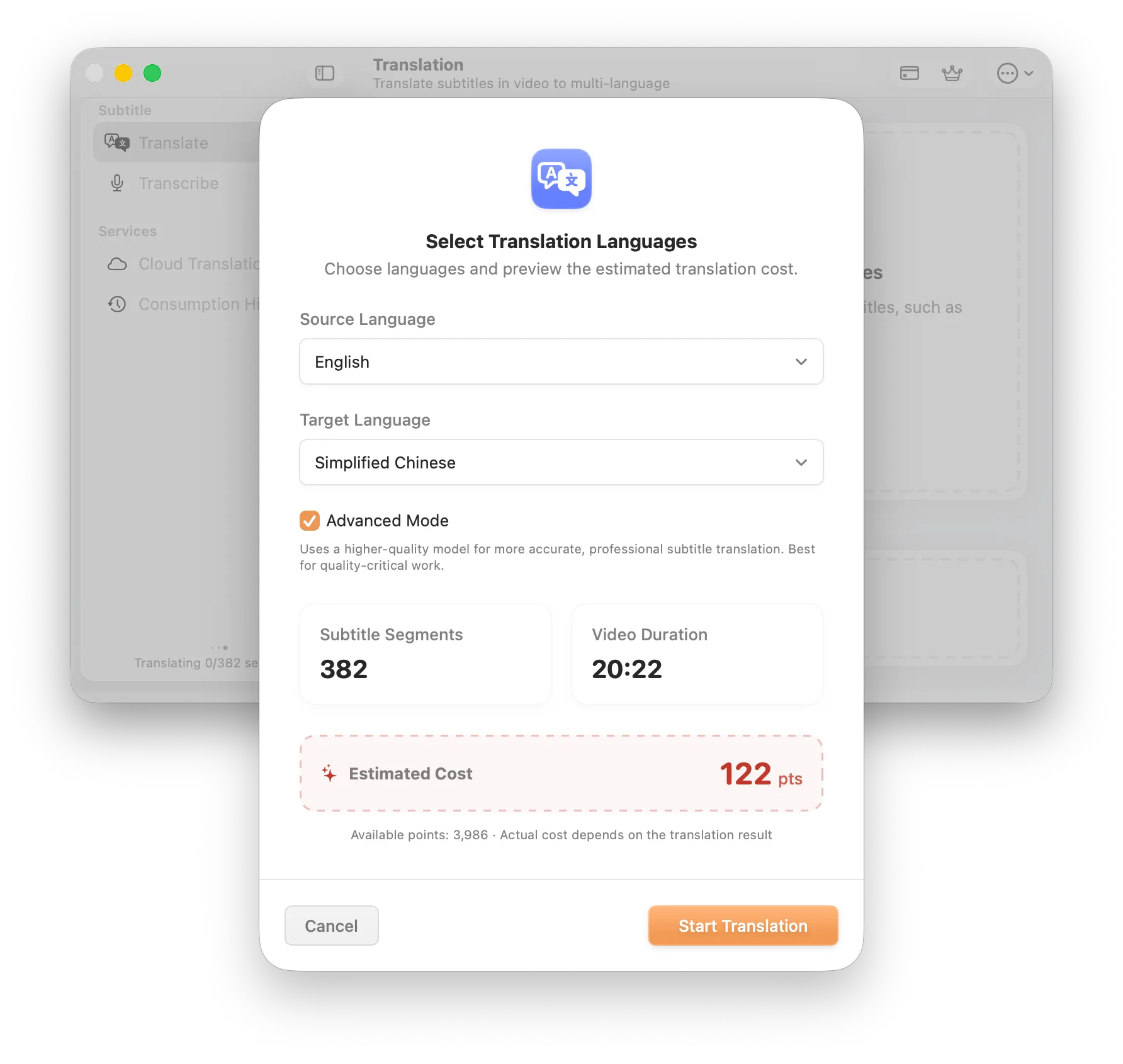
Advanced Mode shows a separate estimated cost before you submit the task.
- Select Languages:
- Source Language: SubEnvoy automatically matches the language based on track metadata. You can switch it manually if needed.
- Target Language: Select your desired translation language. SubEnvoy supports selecting multiple target languages at once to generate multiple translation tasks.
- Translation Mode:
- Standard Mode: Optimized for value, ideal for daily viewing.
- Advanced Mode: Uses top-tier AI models for extreme accuracy with technical terms and complex sentences.
- Estimated Cost:
- The bottom of the screen displays the estimated points required based on Subtitle Segments and Video Duration.
- Note: Actual cost may vary slightly based on the final AI processing result.
Click Start Translation to submit your tasks.
Step 4: Manage Tasks & Export Results
Upon submission, SubEnvoy automatically redirects you to the Cloud Translation page in the sidebar.
- Monitor Status: View the progress of all submitted tasks (Processing or Completed).
- Get Notified: You can safely close the app; SubEnvoy will send a push notification when the translation is finished.
- Save Subtitles: Once the status is “Completed,” click the Save or Export icon next to the task.
- File Format: SubEnvoy saves the translated content as a standard .srt file.
You can now load this subtitle into players like Infuse, IINA, or VLC for a high-quality viewing experience.
The task list may show Queued, Processing, or Completed. Advanced Mode is useful for classic films, specialist vocabulary, or dialogue you plan to keep, but it normally uses more points. Once a task is complete, right-click it and choose Save.
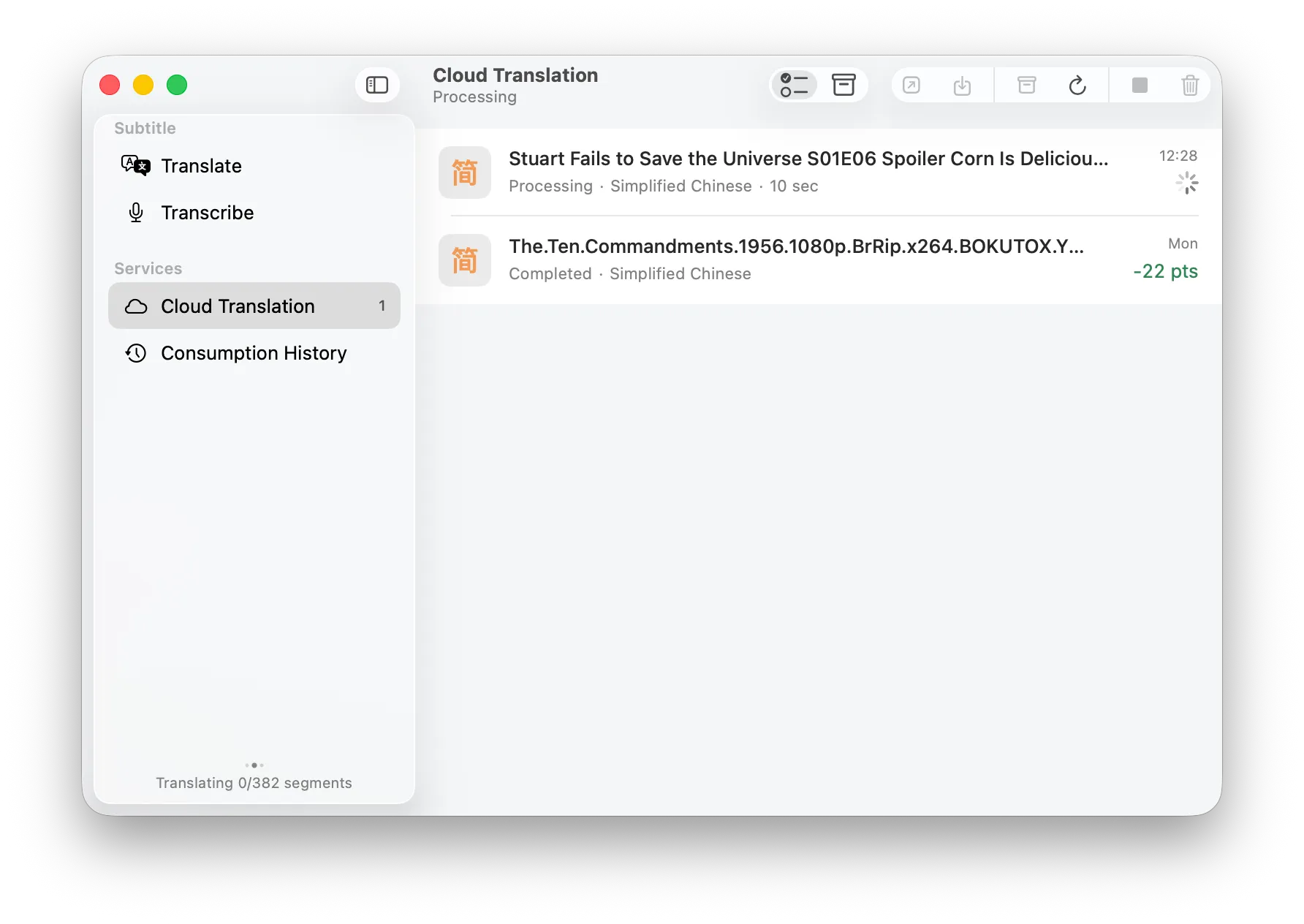
The task moves through the Cloud Translation list as it is processed.
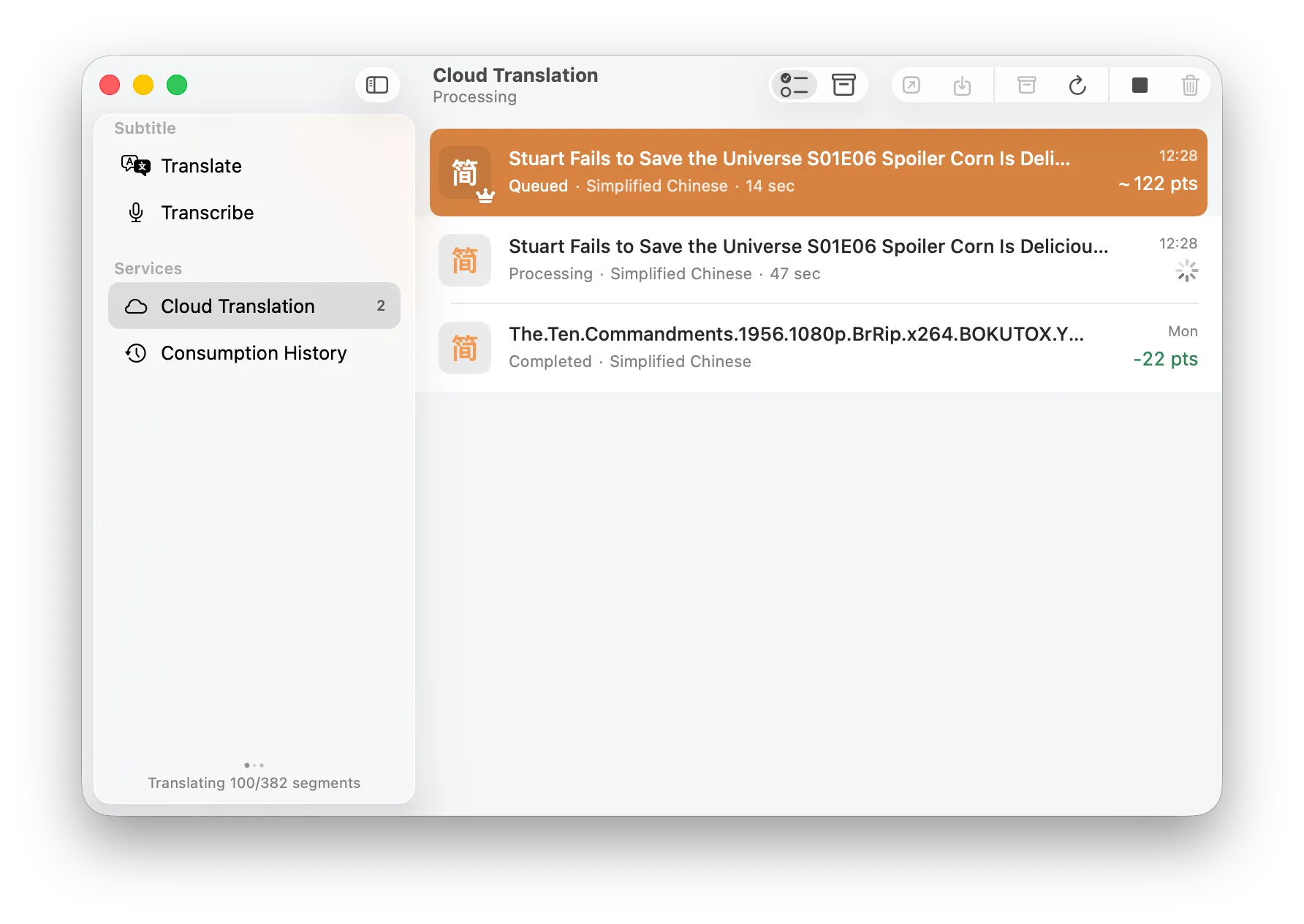
The list shows the target language, status, duration, and estimated points.
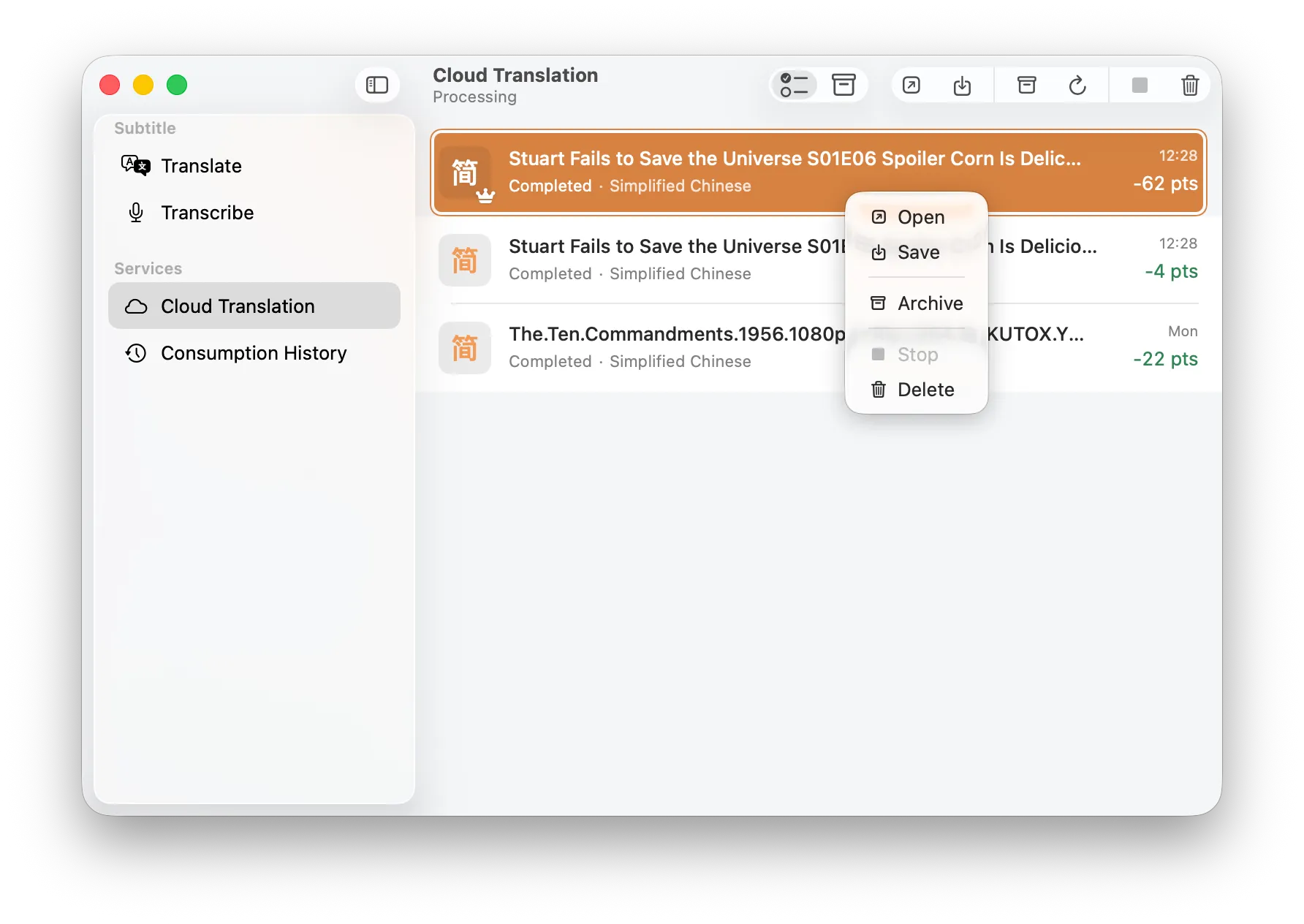
Right-click a completed task and choose Save to export the translated SRT file.
Keep the exported subtitle beside the video with the same base name, such as My-Film.mkv and My-Film.srt. SubEnvoy creates a separate subtitle file and does not modify the original video.
Key Differences on iOS / iPadOS
While the core logic is identical, importing files on iPhone or iPad is more flexible:
- AirDrop: Send videos directly from your Mac to SubEnvoy.
- WiFi Transfer (Network Service): Windows users can enable the built-in “Network Service” in SubEnvoy and use a PC browser to upload videos wirelessly to the iOS device.
- Files App: Select videos directly from the iOS built-in Files app.
FAQ
Q: How long does translation take?
A: Translation tasks are performed in the cloud using high-performance AI models (not executed locally). After submission, tasks enter a processing queue and typically finish within a few minutes.
Q: Can I close the app during translation?
A: Absolutely. Once the task is submitted, you can safely quit the app or shut down your computer without affecting the progress. SubEnvoy will notify you via a system push notification once the translation is complete.
Q: Are translation results stored permanently?
A: To maximize your privacy, our servers only retain translation results for 24 hours. You just need to open the app during this window to sync the data to your local device. After 24 hours, the data on the server is permanently and automatically deleted. This “process-and-purge” policy ensures your content never stays in the cloud long-term.
Q: Is my data private?
A: Absolutely. SubEnvoy only sends encrypted text segments to the cloud. Your original media files never leave your device, and the cloud text is used solely for generating translations, never for AI model training.