
How to Create and Translate Subtitles for Videos with No Text: A Complete From-Zero Solution
A comprehensive guide on using SubEnvoy's AI local transcription feature to convert audio into text subtitles in its original language using Apple Silicon hardware acceleration.
Overview
This guide provides the ultimate solution for “no-text” videos. Using the Transcribe feature in SubEnvoy, you can transform any video or audio file without pre-existing subtitles into precise text in its original language.
SubEnvoy integrates the world-leading open-source Whisper model, deeply optimized for Apple Silicon (Core ML). The entire process runs locally on your device, ensuring maximum privacy while helping you bridge the gap from “nothing” to a fully subtitled and translated video.
Step-by-Step Guide (Focused on macOS)
Step 1: Prepare the AI Model
The first time you use the transcription feature, you’ll need to download an AI model. SubEnvoy offers two variants of the Whisper model:
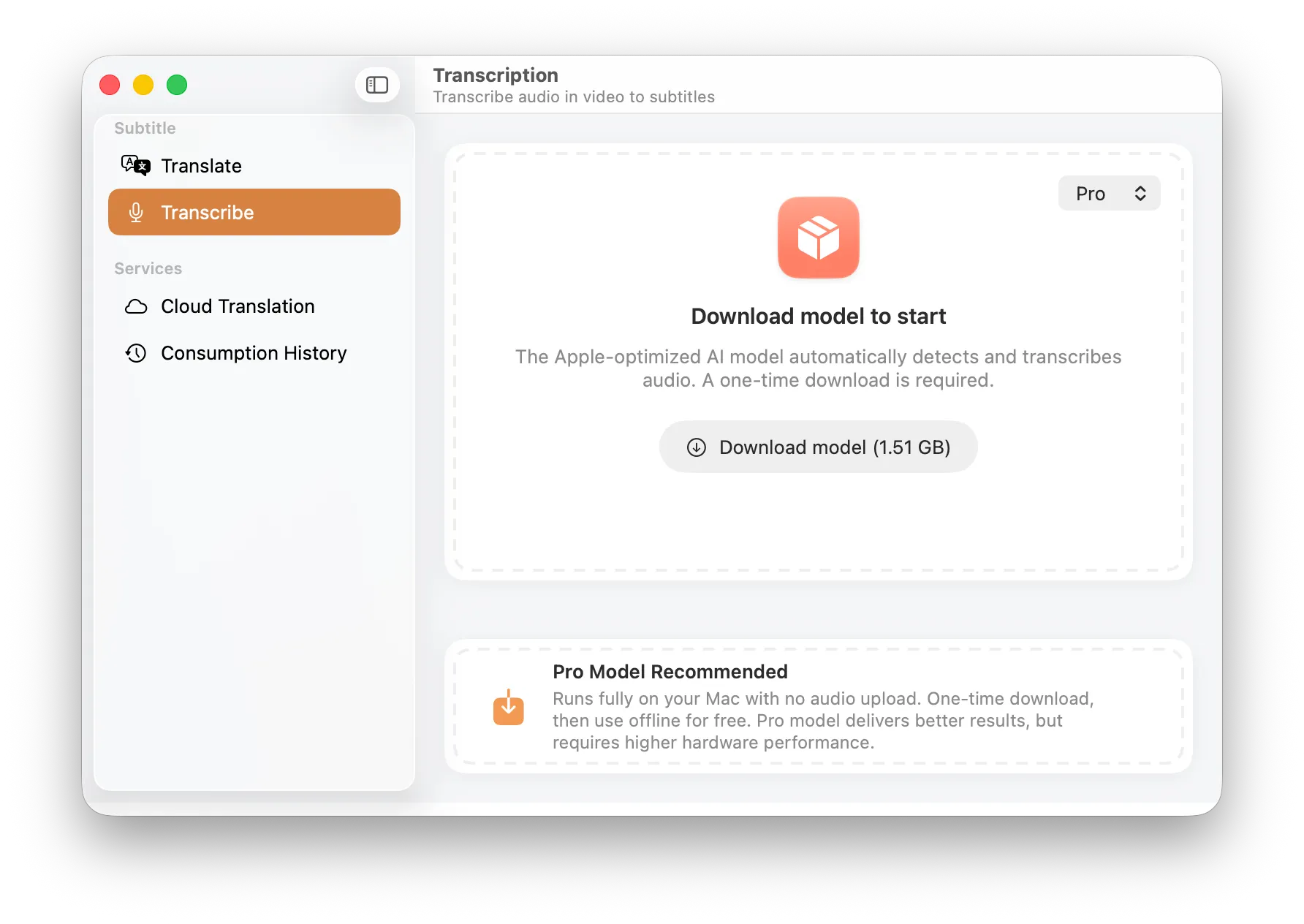
Model Download: Choose a model that fits your hardware performance in the top right corner
- Lite Model (482 MB):
- Features: Lightweight, fast loading, and minimal RAM usage.
- Best For: Quick previews, older Apple Silicon devices (like early M1), or videos with exceptionally clear audio.
- Pro Model (1.51 GB):
- Features: Based on the Whisper Large V3 architecture, using a massive parameter scale for extreme recognition accuracy.
- Recommendation: We recommend the Pro model. It handles complex accents, technical jargon, and background noise much more effectively while providing superior punctuation and segmenting logic.
Step 2: Import Video Files
Once the model is downloaded and loaded, the interface will enter the ready state.
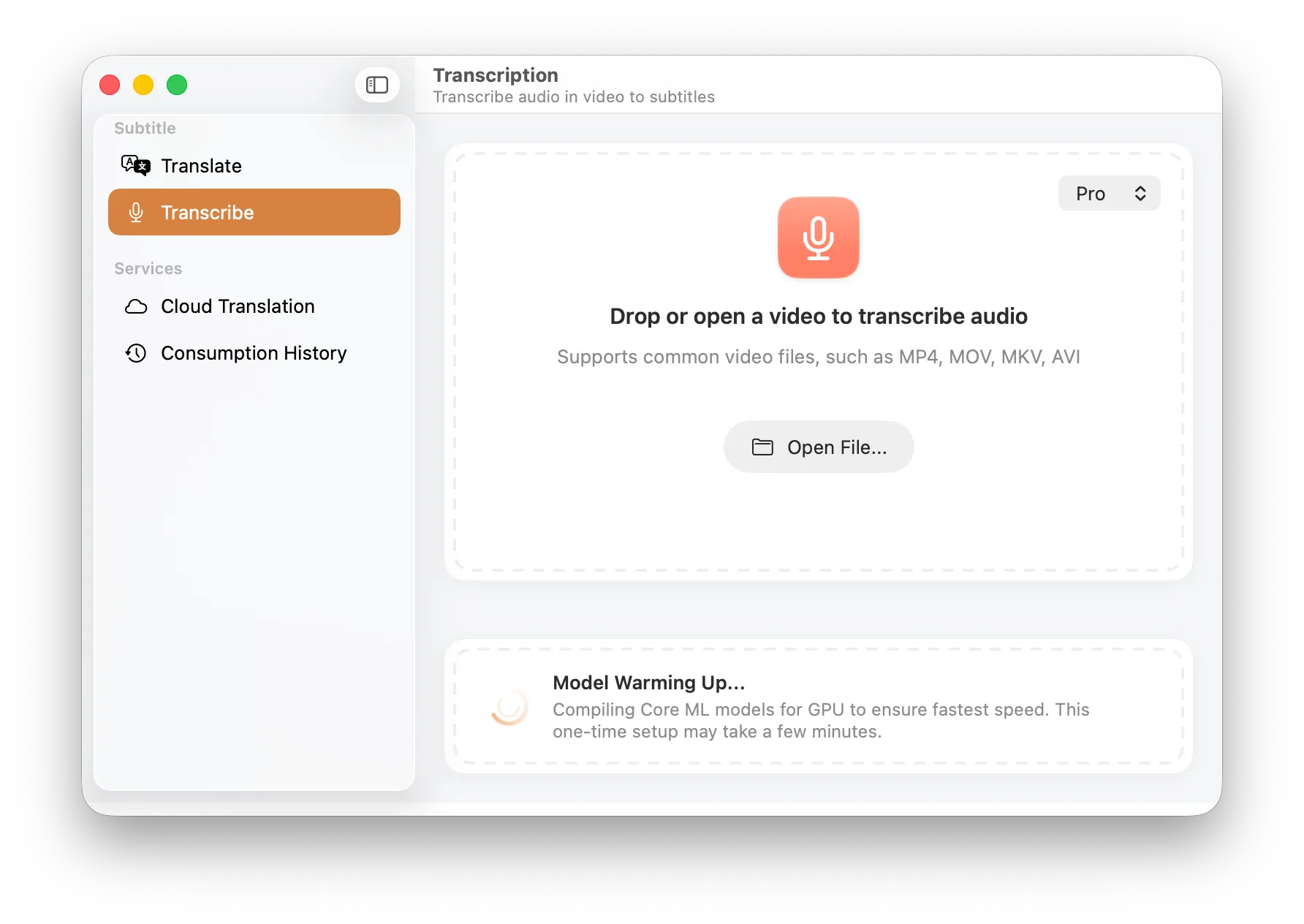
Ready Interface: Support for drag-and-drop or manual file selection
- Simply drag and drop your video file into the window, or click the Open File… button.
- Supported Formats: Compatible with all major video containers like MP4, MOV, MKV, and AVI.
Step 3: Select Audio Track
If your video contains multiple audio tracks (e.g., original audio and a commentary track), a selection dialog will appear.
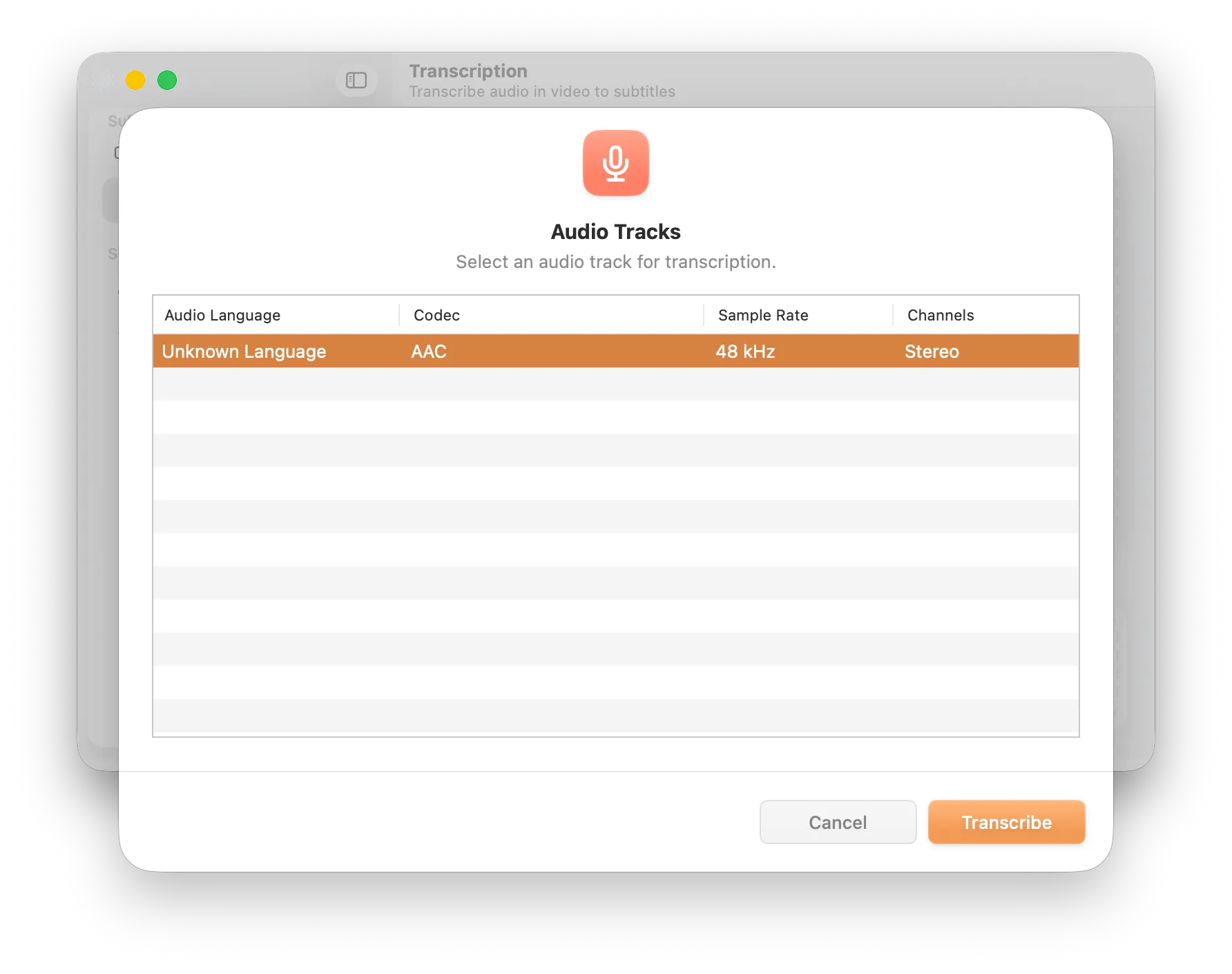
Track Selection: Automatically identifies all available audio tracks
- SubEnvoy automatically detects the Audio Language, Codec, and Sample Rate.
- Select the target track you wish to transcribe and click Transcribe in the bottom right.
Step 4: Initialize the AI Engine
Once the task starts, the system performs necessary pre-processing.
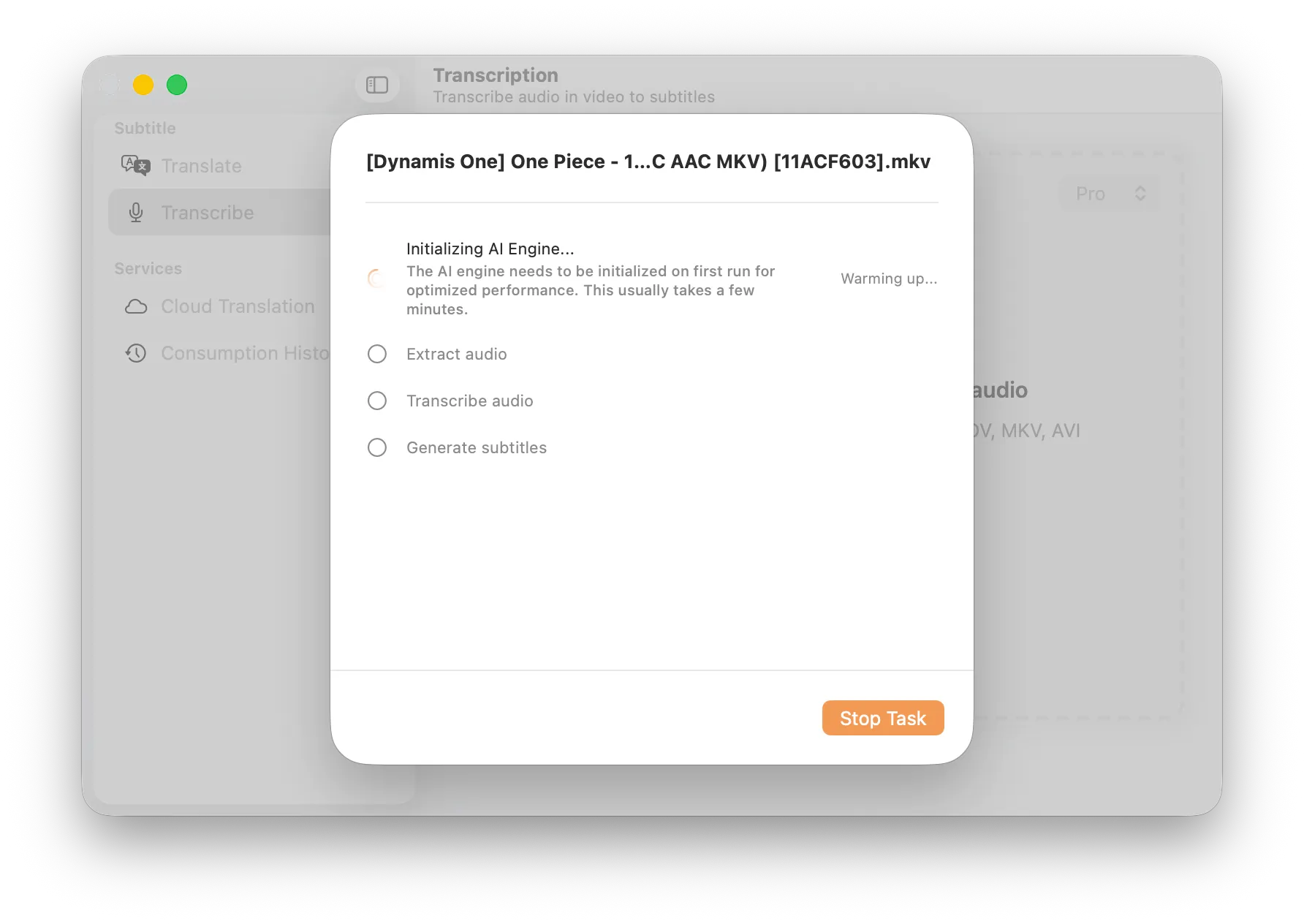
Initialization: Extracting audio and warming up AI compute resources
- The system executes tasks in order: Extract audio -> Transcribe audio -> Generate subtitles.
- About Model Warming Up…:
On the first run or after switching models, SubEnvoy compiles the AI model specifically for your device’s processor (like building a custom engine) to ensure maximum efficiency.
- Subsequent Speed: Once compiled, the results are cached. Future loads will take seconds instead of minutes.
- Time Estimate: Newer devices typically compile in 2-5 minutes, while older devices may need 8-15 minutes, depending on chip and memory specs.
- Optimization Tips: We recommend connecting to power and closing unused apps to free up memory during this phase. Avoid “Low Power Mode” to ensure the CPU/GPU can run at full speed.
Step 5: Real-time Transcription
During the transcription phase, you can monitor the progress in real-time.
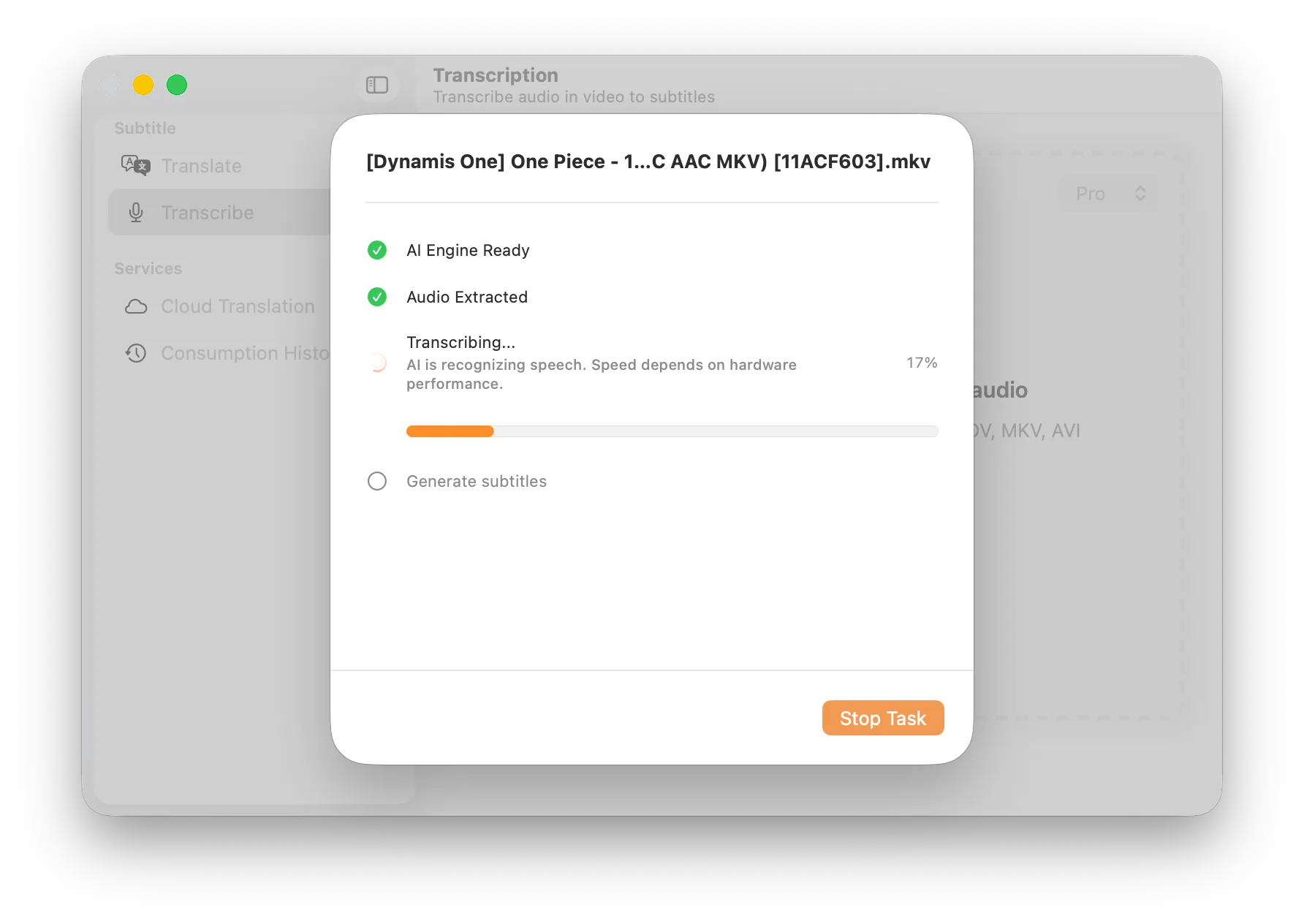
Transcription Execution: AI identifying speech via the Neural Engine
- Transcription speed depends on your hardware performance (M-series chips provide the best results).
Step 6: Complete & Save Results
Once finished, a success message will be displayed.
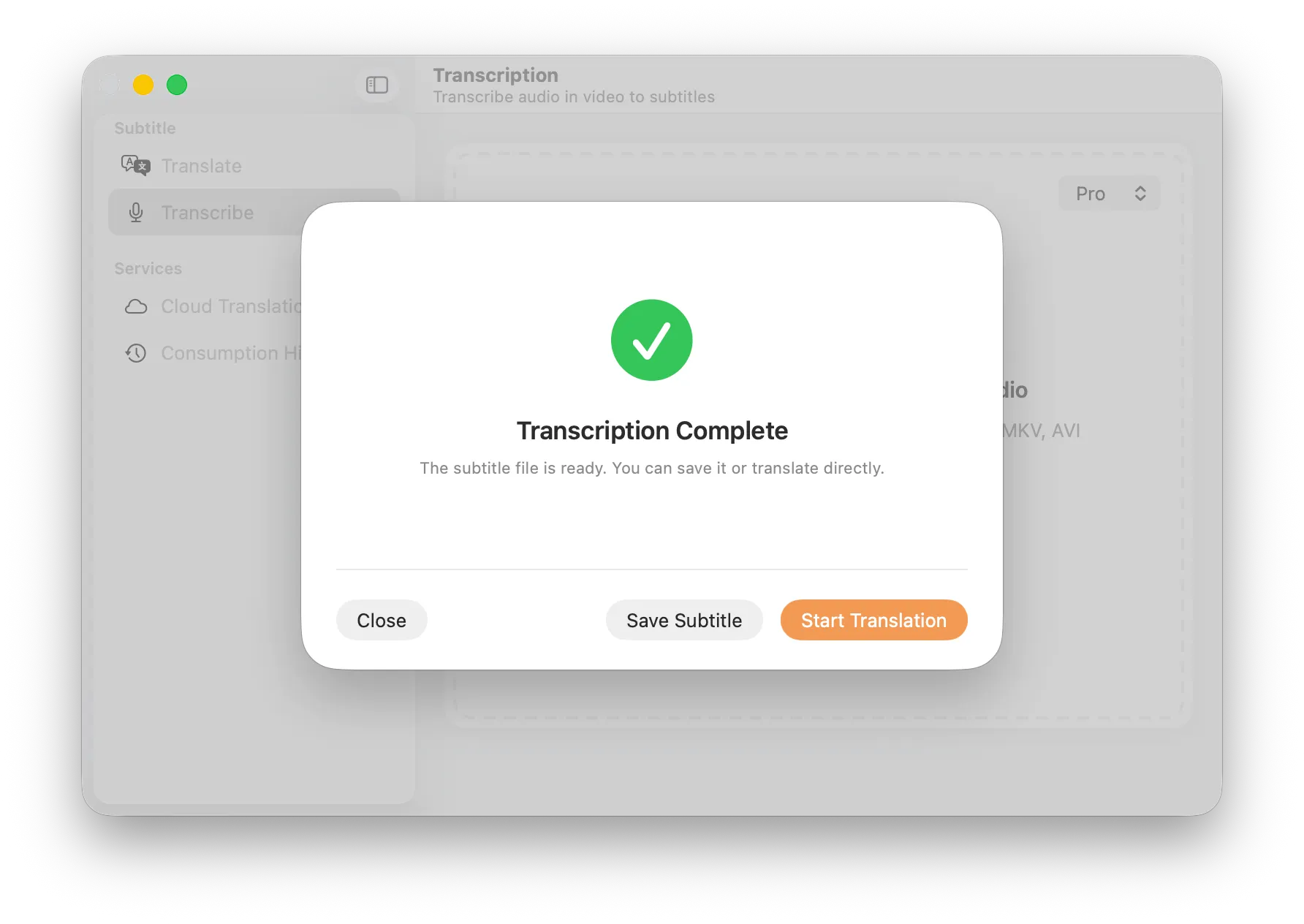
Task Finished: Option to save local subtitles or translate them immediately
- Save Subtitle: Export the identified text as a standard .srt file.
- Start Translation: If you need to translate the newly generated subtitles into other languages, click this button to enter the Cloud Translation workflow directly.
Key Differences on iOS / iPadOS
While the core logic is identical, there are a few design choices specific to mobile:
- Lite Model Only: Unlike the Mac version, the iOS app currently supports only the Lite model.
- Why?: Considering that storage space is extremely precious on mobile devices, and to ensure high processing speed and minimal battery drain, we have chosen the most efficient model for mobile hardware.
- WiFi Transfer (Network Service): Windows users can enable the built-in “Network Service” to wirelessly upload videos via a PC browser.
- Files App: Select videos directly from the iOS built-in Files app.
FAQ
Q: Does transcription automatically translate the content?
A: No. Transcription is designed to convert audio into text in its original language (e.g., English audio becomes English subtitles). If you need translated subtitles (e.g., into Chinese), click the Start Translation button after transcription is complete to use our Cloud AI Translation service.
Q: Does transcription require an internet connection?
A: No. Except for the initial model download, the entire process runs offline on your device.
Q: How accurate is the transcription?
A: The AI models used in SubEnvoy offer very high accuracy and can handle various accents. However, significant background noise may affect the results.
Q: Can I close the app during transcription?
A: No. Since transcription consumes your local computer’s processing power, closing the app or letting your computer sleep will interrupt the process.